-
Cetagory
Software & Applications
Cloud-Based vs. Desktop Software: Which Is Better for Your Needs?
- Admin
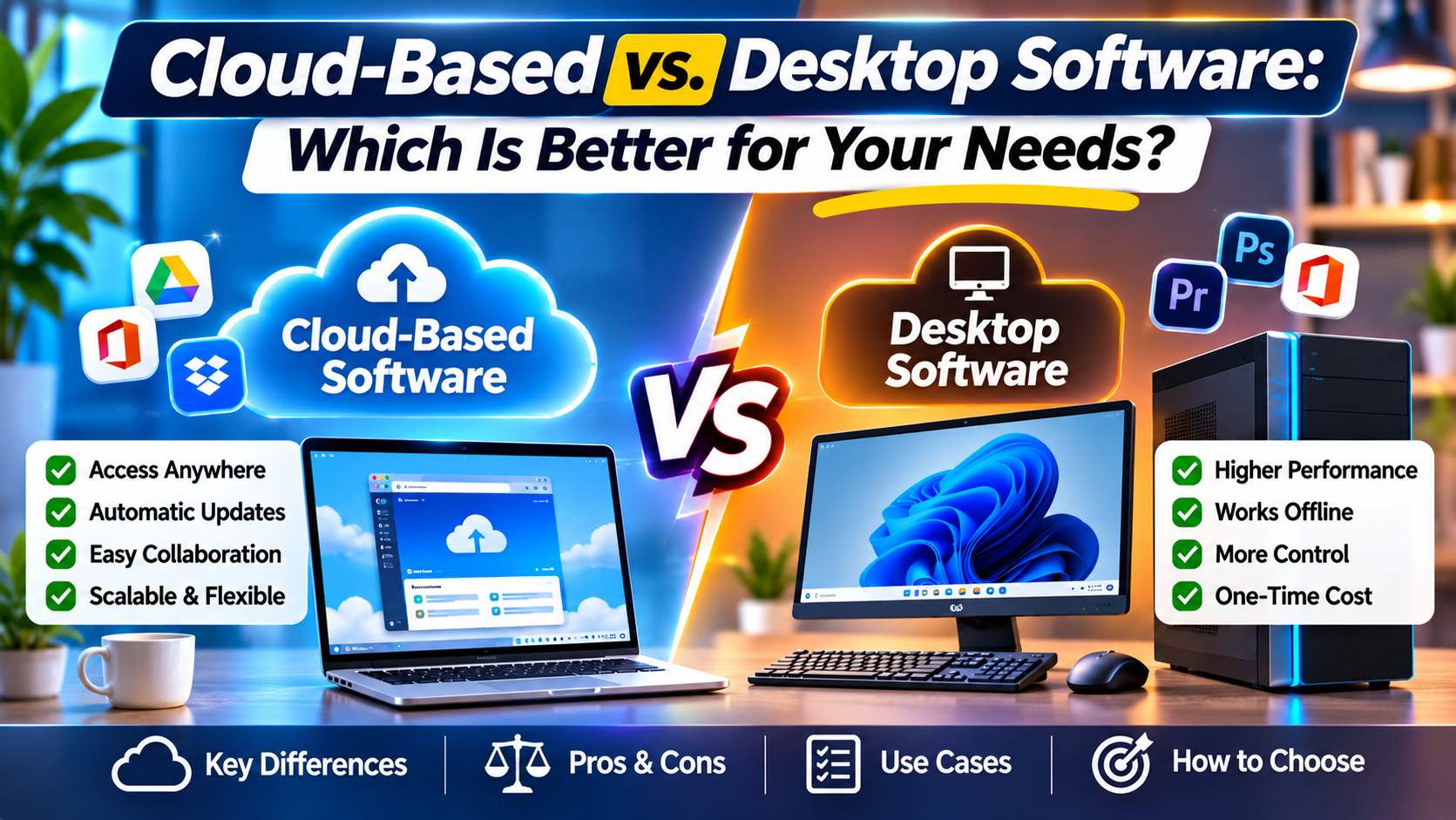
Choosing between cloud-based vs. desktop software comes down to how you work, where your data should live, and what you need from your applications. Cloud tools can make collaboration and access across devices easier, while desktop programs can offer local control, dependable offline workflows, or specialized performance. Neither option is automatically better for every person or organization.
This guide explains how the two models work, compares their practical trade-offs, and outlines how to evaluate security, costs, internet access, maintenance, and software requirements. It also covers hybrid options and a straightforward decision process to help you select software that fits your circumstances.
What Is Cloud-Based Software?
Cloud-based software is delivered over a network, usually the internet. The application and some or all of its data run on infrastructure managed by the software provider or another hosting provider. Users commonly access the service through a web browser or a dedicated app, and the provider handles much of the underlying infrastructure and maintenance.
Many cloud services use a subscription, usage-based, or tiered pricing model, although pricing varies. Some let users install a local app or download files for offline work. The label “cloud-based” therefore does not necessarily mean that every action requires a continuous internet connection or that every copy of a file is stored only on a remote server.
What Is Desktop Software?
Desktop software is installed on a computer and runs primarily on that device. Its files may be saved to the computer’s internal storage, a connected drive, or a network location. Some desktop applications also connect to online services for account management, updates, synchronization, licensing, or collaboration.
Desktop software may be sold as a one-time license, a subscription, or a combination of local application and online services. The exact arrangement depends on the product. Installing a program locally does not automatically make it a one-time purchase, and using a desktop app does not guarantee that it will work without an internet connection.
Cloud-Based vs. Desktop Software: The Main Difference
The central difference is where the software runs and how it is managed. Cloud software generally relies more on provider-managed infrastructure and network access. Desktop software generally relies more on a user’s computer, its operating system, and local storage.
That distinction affects everyday decisions: whether you can open work from another device, who applies updates, how files are backed up, how collaboration works, and what happens during an internet outage. It also affects where responsibility sits. A cloud provider may manage servers, but customers still need to manage accounts, permissions, devices, and appropriate data practices.
How the Two Models Work
How cloud applications handle work
In a typical cloud service, a user signs in and interacts with an application hosted on remote infrastructure. The application may store data in the provider’s environment and synchronize changes across devices. Depending on the product, the user’s browser or device may also process or cache some information locally.
Providers can operate the infrastructure for many customers, but the service’s architecture, data separation, and administrative controls differ. Before relying on a tool, check its documentation for where data is stored, how access is managed, whether offline work is supported, and what happens when an account is suspended or a subscription ends.
How desktop applications handle work
A desktop application uses local computing resources such as a computer’s processor, memory, graphics hardware, and storage. This can be useful for tasks that involve large files or specialized hardware. The application may also send information to an online service, so its privacy and connectivity characteristics depend on more than where its main program is installed.
Local files need a deliberate backup plan. If a device is lost, damaged, or affected by malware, files saved only on that device may be unavailable. Users can reduce this risk with suitable backups, external storage, or synchronization services, while taking care to protect sensitive files and backup credentials.
Quick Comparison: Cloud vs. Desktop
| Factor | Cloud-based software | Desktop software |
|---|---|---|
| Access | Often available through a browser or app on multiple devices, subject to account and network access. | Usually installed on specific computers; access elsewhere may require installation or a remote-work setup. |
| Internet | Often needs connectivity for full functionality, though some tools support offline modes. | May work offline for core tasks, but online features or licensing checks can still require connectivity. |
| Maintenance | Provider commonly manages server-side updates and infrastructure. | User or IT team commonly manages installation, compatibility, and updates. |
| Collaboration | Often includes shared access and synchronized work, depending on the service. | May need file-sharing, version-control, or collaboration tools to coordinate work. |
| Data control | Data may be held in provider-managed systems under the service’s terms and controls. | Files can remain on local storage, though apps may still transmit data or use online services. |
| Cost model | Often subscription or usage based; plans and included features vary. | May involve a license, subscription, hardware, IT, and maintenance costs. |
Access and Working Across Devices
Cloud software is often convenient for people who move between a home computer, workplace device, and mobile device. If the service supports those devices, a user can sign in and continue working without manually moving a file each time. This can also simplify access for distributed teams, but it depends on account permissions, device compatibility, and reliable service availability.
Desktop software is usually tied to the computers on which it is installed. Some vendors allow several installations or provide remote access, but the terms and technical setup vary. If a task must be available on multiple devices, consider how files will be transferred, synchronized, or shared and whether users might accidentally create conflicting versions.
Questions to ask about access
- Which operating systems and device types are supported?
- Can you sign in from a personal or shared device safely?
- Can users work offline, and how are offline changes synchronized?
- What account recovery and access controls are available?
- Can the organization remove access promptly when a person leaves?
Collaboration and Version Control
Many cloud services are designed to let more than one person view or edit shared work. They may provide comments, permissions, activity records, and synchronization. These features can reduce the need to email files back and forth, although collaboration quality depends on the specific product and how a team uses it.
Desktop workflows can also support collaboration. Teams may use shared network folders, document-management systems, source-control tools, or a cloud storage service alongside local applications. The main challenge is to establish a reliable process for naming, sharing, and tracking files so people do not overwrite work or rely on an outdated copy.
Example: A small team preparing a proposal
A team working in a browser-based document service might edit one shared file and leave comments in context. A team using desktop publishing software might create the final layout locally, while sharing drafts through a controlled folder. The first approach can simplify simultaneous text editing; the second may suit a layout workflow that depends on particular fonts, linked assets, or specialized tools.
The best choice is not simply the one with more collaboration features. Evaluate whether the tool supports the team’s actual file formats, review steps, access rules, and final delivery requirements.
Offline Work and Internet Reliability
Desktop programs can be a strong fit for locations where connectivity is limited or unreliable, especially when the software and files are available locally. However, do not assume that every desktop program works fully offline. Some applications require online activation, periodic license checks, connected accounts, or access to cloud-based features.
Cloud services also vary. Some provide offline modes that let users work on selected files and synchronize later. Others need a live connection for most actions. Offline behavior can differ by device, file type, and feature, so test it before depending on it during travel, fieldwork, or an outage.
Plan for an outage before it happens
- Identify which tasks must continue if the internet or a provider service is unavailable.
- Check whether the software supports offline access and what needs to be prepared in advance.
- Decide how offline edits will be reconciled with changes made by other users.
- Keep appropriate backups and a documented alternative for essential work.
- Test the plan periodically instead of assuming it will work when needed.
Security and Privacy: What to Evaluate
Security is not a simple contest between “cloud” and “local.” Cloud providers may operate dedicated security controls, but a customer’s exposure still depends on configuration, account protection, product design, and the data being handled. A lost or compromised account can create risk even when a provider’s infrastructure is well managed.
Desktop software can keep some files on a device under an organization’s direct control, but that device can be stolen, infected, poorly maintained, or shared inappropriately. Local storage does not itself provide encryption, secure access, or reliable backups. In either model, security depends on how the whole system is set up and used.
Review these security and privacy details
- Access controls: Look for individual accounts, role-based permissions, and strong authentication options appropriate to the work.
- Encryption: Confirm what protection applies to data in transit and at rest, and understand any limitations.
- Data handling: Read the provider’s documentation and terms to learn how data is collected, used, retained, and deleted.
- Backups and recovery: Check what is backed up, how recovery works, and whether you need an independent copy.
- Updates: Establish how security fixes are delivered and who is responsible for applying them.
- Device protection: Use appropriate operating-system updates, access controls, and security practices for local computers.
Organizations handling regulated, confidential, or sensitive information should assess the applicable requirements in their jurisdiction and industry. A product’s marketing claims are not a substitute for reviewing its documentation, contract, configuration, and the organization’s own obligations. Where needed, consult a qualified security, privacy, or legal professional.
Costs: Look Beyond the Price Tag
Cloud services may reduce the need to buy and maintain some server infrastructure, but recurring fees can add up as users, storage, or feature requirements grow. Plans may charge per person, by usage, or by a combination of factors. Review renewal terms, limits, add-ons, data export options, and what happens to access after a subscription ends.
Desktop software may involve an upfront license or subscription, but the total cost can also include compatible computers, installation, maintenance, backups, and IT support. A lower purchase price does not necessarily mean a lower long-term cost, just as a subscription does not automatically make a cloud tool more expensive.
Build a realistic total-cost comparison
Compare the costs over a period that makes sense for your organization or personal use. Include the software itself, required hardware, storage, support, training, backup arrangements, connectivity, and time spent managing the system. If you are comparing business options, use the same number of users and the same required features for each estimate.
Also account for migration. Moving existing files, training staff, rebuilding workflows, or integrating systems can involve effort that is not visible in a monthly price. Ask whether data can be exported in usable formats and whether leaving the service would require additional work or fees.
Performance and Specialized Workloads
Desktop applications can use the local computer’s processor, memory, and graphics hardware directly. This may suit demanding work such as editing large media files, computer-aided design, or processing substantial datasets, provided the computer is capable and the application is optimized for the task.
Cloud software can also handle demanding workloads, because processing may occur on provider-managed infrastructure. The experience then depends on factors such as network quality, service design, file size, and the user’s device. A remote application may be convenient for some tasks but less responsive when a workflow depends on fast, continuous interaction over a weak connection.
Test the actual workload
Rather than choosing based on broad claims about speed, try representative work in each environment where possible. Use realistic file sizes, normal network conditions, required peripherals, and the devices people will actually use. Check not only processing time but also responsiveness, file transfer, reliability, and how the software handles interruptions.
Updates, Maintenance, and IT Support
With cloud services, the provider typically manages the hosted infrastructure and deploys many updates centrally. That can reduce local installation work, but updates may arrive on the provider’s schedule and change the interface or behavior. Review the provider’s update communication and controls if a change could affect important workflows.
Desktop software often gives users or IT teams more direct control over installation timing and approved versions. That control also creates responsibility: systems must be patched, compatibility checked, and licenses managed. Delayed updates can leave software exposed to known issues, while poorly planned updates can disrupt work.
For either model, identify who handles support, outages, troubleshooting, and user access. A cloud provider may be responsible for service infrastructure, while the customer remains responsible for local networks, devices, account settings, and many user issues.
Compatibility, Customization, and Integration
Desktop software can support specialized devices, file formats, plug-ins, and workflows that depend on a particular operating system. This can matter for professional tools or established processes, but it can also make the software harder to move between computers or operating systems.
Cloud platforms may connect with other online services through integrations or APIs. Those connections can streamline work, yet each integration adds configuration and access considerations. Check whether the software supports the file formats, export options, accessibility needs, and systems you already rely on. Do not assume that two products with similar names or features will exchange files perfectly.
Scalability and Changing Needs
Cloud services can make it easier to add or remove accounts and capacity, depending on the provider and plan. This is useful when a team’s size or workload changes, although the practical limits, pricing, and administration requirements should be reviewed before a rapid expansion.
Desktop environments can scale too, but adding users may require purchasing or configuring more computers, managing installations, and supporting a broader range of devices. For a small group with stable requirements, that may be straightforward. For a distributed or frequently changing workforce, the administrative effort may be more noticeable.
Data Portability and Vendor Dependence
Before committing to a service, find out how you can export your information and in what formats. A service may allow downloads but not preserve every feature, permission, comment, or relationship between records. If the data matters, perform a small export test and confirm that you can open or use the result outside the original product.
Desktop software can also create dependence through proprietary file formats, plug-ins, or hardware requirements. Keeping an application installed does not guarantee that its files will remain accessible indefinitely. For either model, consider long-term readability, backup copies, licensing terms, and a practical exit plan.
Common Myths About Cloud and Desktop Software
“Cloud software is always more secure.”
Security depends on the provider, product, configuration, user practices, and type of data. A well-managed service can offer strong controls, but weak passwords or overly broad sharing can still expose information. Local software can also be protected well, but it requires appropriate device management and backups.
“Desktop software always works offline.”
Some desktop applications work offline, but others rely on online activation, accounts, licensed services, or connected features. Verify the exact offline behavior for the version and tasks you plan to use.
“Cloud software has no IT overhead.”
A provider may manage servers and application infrastructure, but organizations still need to manage accounts, permissions, devices, training, integrations, and service selection. Cloud can shift operational work rather than eliminate it.
“A one-time license is always cheaper.”
Costs depend on the license, useful lifespan, upgrades, support, hardware, and maintenance. Compare realistic total costs over time rather than judging by the initial purchase price or monthly fee alone.
When Cloud-Based Software May Be a Better Fit
Cloud software may suit people who need to collaborate across locations, access work from several supported devices, or avoid managing local application installations. It can also be attractive when a provider’s managed infrastructure and update process match the organization’s needs.
- Your team regularly works from different locations or devices.
- Several people need to edit or review shared work.
- You prefer a provider-managed service and have dependable connectivity.
- The required features, data controls, and export options meet your needs.
- A subscription or usage-based cost aligns with your budget and planning.
These are indicators, not guarantees. Confirm that the service supports your workflows and that its account, privacy, security, and service-continuity arrangements are acceptable.
When Desktop Software May Be a Better Fit
Desktop software may be preferable when work must continue with limited connectivity, depends on local hardware, or uses a specialized application that is not available in a suitable cloud version. It may also fit workflows that require direct control over installation and local files.
- You need essential features while offline and have verified that they work without a connection.
- Your work depends on specific hardware, plug-ins, or operating-system capabilities.
- You have a capable device and a clear plan for updates and support.
- Local file handling fits your security and operational requirements.
- You can reliably protect files through access controls and backups.
Local control comes with responsibilities. A desktop setup still needs maintenance, secure device practices, and a plan for data recovery if a computer fails or becomes unavailable.
Why a Hybrid Approach Can Work
Many people and organizations use both models. A designer might use desktop software to create large project files and cloud storage to share approved versions. A business might run a locally installed accounting application while using a cloud service for communication and document review.
A hybrid arrangement can match different tools to different tasks, but it can also create duplicated data and unclear ownership. Decide which system holds the authoritative version of each file, who can access it, how synchronization works, and how backups are verified. Avoid maintaining multiple copies without a clear reason and process.
How to Choose: A Practical Decision Process
- List the work that must be done. Identify essential features, file types, collaborators, devices, and any specialized hardware.
- Set connectivity requirements. Decide which tasks must work offline and test the software’s actual offline mode.
- Classify your data. Consider sensitivity, retention, access restrictions, and any applicable organizational or legal requirements.
- Compare full costs. Include licenses or subscriptions, hardware, support, backups, training, migration, and administration.
- Test compatibility and performance. Use representative files and workflows rather than relying only on product descriptions.
- Check control and portability. Review permissions, account recovery, export formats, cancellation terms, and how you would move away from the product.
- Run a small pilot. Ask a representative group to try the option and record practical issues before a wider rollout.
- Plan maintenance and recovery. Assign responsibility for updates, access, backups, support, and service interruptions.
A short pilot often reveals issues that a feature checklist misses, such as slow file transfers, confusing permissions, missing fonts, or a workflow that depends on an unavailable integration. Evaluate results against criteria set in advance so that the decision reflects actual needs rather than familiarity or marketing claims.
Common Selection Mistakes to Avoid
- Choosing based only on price: Include maintenance, support, hardware, and migration in the comparison.
- Assuming the product label tells the whole story: A desktop app may need online services, and a cloud tool may offer limited offline work.
- Ignoring the people who will use it: A technically capable product can still be a poor fit if it disrupts everyday tasks or accessibility needs.
- Skipping an export test: Confirm that important data can be retrieved and used in a practical format.
- Overlooking backups: Synchronization can propagate accidental changes or deletion, so understand what recovery options exist.
- Failing to assign ownership: Someone should manage accounts, updates, permissions, renewals, and continuity planning.
Conclusion
Cloud-based vs. desktop software is not a universal contest with one winner. Cloud tools often make shared access and collaboration convenient, while desktop applications can suit offline work, local processing, and specialized workflows. Both models involve trade-offs in cost, maintenance, privacy, security, performance, and data control.
Start with the tasks you need to complete, then check connectivity, data requirements, compatibility, total cost, and the plan for backups and recovery. Test realistic workflows before committing. The better choice is the one that meets your requirements reliably and can be managed responsibly over time; for many users, that means combining cloud and desktop tools thoughtfully.
Frequently Asked Questions
Is cloud-based software better than desktop software?
Not in every situation. Cloud software may be more convenient for shared access and collaboration, while desktop software may better suit offline work, local processing, or specialized hardware. Compare the specific products against your connectivity, security, compatibility, budget, and workflow needs rather than choosing by category alone.
Can desktop software work without an internet connection?
Some desktop applications support their main features offline, but others require online activation, a signed-in account, periodic license checks, or connected services. Check the product’s requirements and test the functions you depend on before working offline. Also make sure the necessary files and licenses are available on the device.
Is cloud software safe for sensitive business data?
It can be appropriate in some settings, but safety depends on the service, configuration, contracts, access controls, and the sensitivity of the data. Review the provider’s security and privacy documentation, retention and deletion practices, and relevant requirements for your organization. Seek qualified advice when laws, contracts, or regulated data are involved.
Is desktop software cheaper in the long run?
It depends on licensing, hardware, support, upgrades, maintenance, and how long the software remains useful. Cloud subscriptions may have recurring fees, while desktop software may require computer upgrades, IT support, and backup arrangements. Compare the same users and features over a realistic period, including migration and administration costs.
Can I use cloud and desktop software together?
Yes. A common approach is to use a desktop application for specialized creation or offline tasks and cloud services for sharing, review, or synchronization. To avoid confusion, define where the authoritative copy lives, who can edit it, how changes sync, and what backup and recovery process protects the work.
- 15 Useful Android and iOS Applications That Can Make Everyday Tasks Easier
-
 Health - 11:01:50pm 15-11-2026
- Cloud-Based vs. Desktop Software: Which Is Better for Your Needs?
-
Health - 10:58:07pm 15-11-2026
-
 Blog
What Is the Best Cheap Car Insurance for Young Drivers
-
 Blog
Best Car Insurance for Electric Vehicles (EVs): Complete Guide for 2026
-
 Blog
Long Term Car Rental Discounts: The Complete Guide to Saving Big on Extended Rentals
-
 Blog
Health Insurance Exclusions: What to Check Before You Buy
-
 Blog
Health Insurance Waiting Period: What You Should Know Before Buying a Policy